1 - Understanding HDTwin Council Reports
A guide to the structure, contents, and interpretation of deliberation results
1. Introduction
HDTwin Council is a deliberation platform that allows users to explore how a panel of Human Digital Twins (HDTs) responds to a given topic, question, or set of statements.
A Human Digital Twin is an AI-powered synthetic persona designed to reproduce selected characteristics, reasoning patterns, and behaviours of a target population.
During a deliberation, these AI agents can evaluate statements, express agreement or disagreement, and contribute additional statements. The platform then analyses their responses to identify collective patterns, areas of agreement, differences of opinion, and uncertainty.
The HDTwin Council Report presents these results in a structured, visual format, similar to the reports generated by Pol.is.
The purpose of the report is not simply to count votes, but to help users understand:
- Overall sentiment: What does the panel collectively agree or disagree with?
- Consensus: Which opinions are widely shared?
- Opinion diversity: Are there distinct groups with different perspectives?
- Disagreement: Which statements distinguish these groups?
- Uncertainty: Which statements receive inconclusive responses?
- Relationships: How are participants and statements positioned relative to one another based on voting behaviour?
The report describes synthetic deliberation outcomes, not direct responses from real individuals. Its results should be interpreted in the context of the panel used to generate them.
2. General report structure
A Council report is organised into several sections, each providing a different perspective on the deliberation.
| Section |
What it contains |
Main purpose |
| Report header |
Topic, description, creation date |
Identify the deliberation |
| Overview |
Participation and activity statistics |
Understand the scale of the simulation |
| Panel Sentiment |
Voting distributions for each statement |
Examine overall and group-level opinions |
| Majority |
Statements reaching a majority threshold |
Identify broadly supported or rejected positions |
| Opinion Groups |
Groups of agents with similar voting patterns |
Understand different perspectives within the panel |
| Areas of Uncertainty |
Statements frequently passed over |
Identify topics that may require further exploration |
| Graph |
Visual relationships between agents, statements, and opinion groups |
Explore the structure of collective opinions |
Depending on the deliberation and available analysis, the report may also contain a Divisiveness section, describing the overall level of consensus or disagreement and any detected areas of shared agreement.
The following sections explain how to read each component.
The header provides the basic identification information for the deliberation.
It contains three main fields:
| Field |
Description |
| Topic |
The title or name assigned to the deliberation. |
| Description |
A short explanation of the subject, question, or issue being explored. |
| Created |
The date on which the deliberation was created. |
These fields provide context for interpreting the subsequent analysis and help distinguish reports generated from different deliberations.
4. Overview
The Overview section summarises the scale of the deliberation and the level of activity within the synthetic panel.
It introduces three fundamental concepts:
- Participants: The AI agents belonging to the selected panel that take part in the deliberation.
- Statements: Opinions, propositions, or comments presented for evaluation by the participants. Statements can be provided before the deliberation or generated by participants during the process.
- Opinion Groups: Groups of participants identified through similarities and differences in their voting behaviour.
Participation metrics
The section presents a set of numerical indicators:
| Metric |
Meaning |
| Voters |
Number of AI agents that participated by voting. |
| Grouped |
Number of participants assigned to an opinion group. |
| Votes were cast |
Total number of votes expressed during the deliberation. |
| Statements were submitted |
Total number of statements included through participant submissions. |
| Votes per voter on average |
Average number of votes cast by each voting participant. |
| Statements per author on average |
Average number of statements submitted per contributing author. |
How to interpret this section
The Overview provides information about the volume and coverage of the simulation, rather than about its substantive conclusions.
In particular, it helps the reader understand whether the analysis is based on broad participation across the panel, how many statements were evaluated, and how extensively the agents interacted with those statements.
The number of grouped participants also indicates how many participants could be classified into the opinion groups used in the subsequent analysis.
These indicators should not be interpreted as measures of statistical representativeness or confidence.
5. Panel Sentiment
The Panel Sentiment section presents the voting results for individual statements.
This is the most detailed section for understanding how the synthetic panel responds to the propositions being discussed.
Structure of the table
Each row represents one statement. It includes:
- A numerical statement identifier, used to reference the statement elsewhere in the report.
- The complete statement text.
- An Overall column representing the responses of the entire panel.
- Additional columns representing individual opinion groups, identified by letters such as A, B, C, and D.
Each group column also displays the number of participants assigned to that group.
The statements may be sorted according to different criteria, such as the percentage of agreement. Statements excluded by moderation are not included in the Panel Sentiment analysis.
Understanding the voting indicators
Agreed — participants supporting the statement.
Disagreed — participants opposing the statement.
Passed — participants who encountered the statement but chose not to express agreement or disagreement.
Didn’t vote — participants who did not cast a vote on that statement.
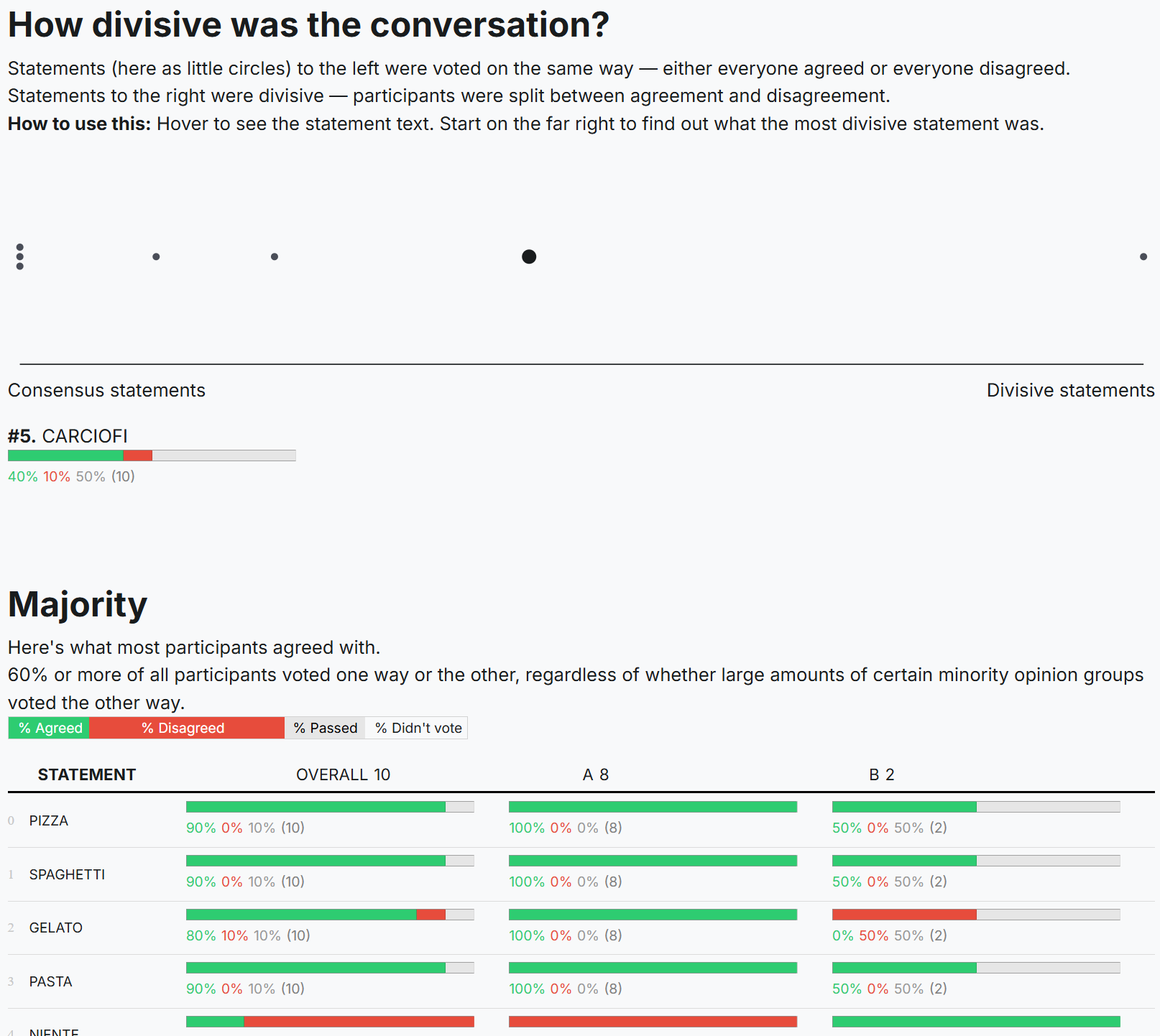
The report uses horizontal bars and percentages to represent these voting categories.
Passed and Didn’t vote must be distinguished. Passing is an explicit response, whereas not voting indicates the absence of a recorded vote.
The displayed percentages may not sum to exactly 100% because of rounding and the presence of participants who did not vote.
How to read the results
The reader can examine a statement horizontally to compare how different opinion groups responded to the same proposition.
This makes it possible to identify three important situations:
Broad agreement: Most groups support the same statement, suggesting a common position across the panel.
Broad disagreement: Most groups reject the same statement, revealing a shared negative position.
Polarisation: Some groups strongly support a statement while others reject it, indicating that the statement distinguishes different perspectives within the panel.
A particularly important feature is the distinction between overall sentiment and group-level sentiment. An overall majority can coexist with strong disagreement in a smaller opinion group.
6. Majority
The Majority section identifies statements for which a sufficiently large proportion of the panel has expressed the same position.
In the report format examined, a statement qualifies when at least 60% of all participants agree with it or at least 60% disagree with it.
What this section contains
It uses the same voting representation as Panel Sentiment, showing each selected statement together with its overall and group-level voting distributions.
Unlike Panel Sentiment, it only includes statements that meet the majority threshold.
How to interpret it
This section highlights opinions that are widely supported or rejected within the simulated panel.
It is useful for identifying:
- Common positions that could provide a basis for collective decisions.
- Statements that receive widespread opposition.
- Areas where the overall panel has a clear preference despite differences between opinion groups.
Importantly, majority does not mean unanimity or agreement across all groups.
A statement can qualify for the Majority section even when a minority opinion group strongly disagrees with the prevailing position.
Consequently, the Majority section should be read together with the Opinion Groups section to distinguish broad agreement from positions that may conceal significant differences.
7. Opinion Groups
The Opinion Groups section is one of the central analytical components of the report.
It identifies groups of participants based on similarities in their responses across multiple statements.
How opinion groups are defined
Opinion groups are constructed using two principles:
- Participants within the same group tend to vote similarly across several statements.
- Their voting patterns differ sufficiently from those of participants in other groups.
The resulting groups therefore describe clusters of opinion, rather than predefined demographic or administrative categories.
Each group is identified by a letter and associated with its number of participants.
Structure of the section
For each opinion group, the report provides:
- The group identifier.
- The number of participants assigned to it.
- A selection of statements that distinguish the group.
- Voting distributions for those statements, both overall and across all groups.
These statements are described as those that make the group unique through its voting patterns.
How to interpret it
This section helps the reader understand not only that different opinions exist, but also what differentiates them.
The most informative statements are those where a group’s response contrasts noticeably with other groups.
Comparing these statements makes it possible to describe different perspectives within the panel, such as distinct attitudes, preferences, priorities, or concerns.
These descriptions are interpretations of voting patterns, not predefined labels produced by the clustering itself.
The letters assigned to groups are identifiers. They do not indicate an ordering of importance, quality, or representativeness.
Furthermore, the report does not automatically establish why a group holds a particular position. It identifies the patterns of similarity and difference expressed through voting.
8. Areas of Uncertainty
The Areas of Uncertainty section highlights statements for which participants frequently chose to pass rather than express agreement or disagreement.
In the examined report, statements are included when more than 30% of participants who encountered the statement passed on it.
What this section contains
The section presents the relevant statements using the same voting tables and group comparisons as previous sections.
The focus, however, is on statements that produce relatively high levels of noncommittal responses.
How to interpret it
A high proportion of passes may indicate a topic that deserves additional investigation.
Potential explanations include insufficient information, ambiguity, competing considerations, reluctance to take a position, or a lack of a clear preference.
However, these interpretations are possibilities rather than conclusions directly demonstrated by the report.
Passing should therefore not automatically be interpreted as uncertainty, lack of knowledge, or neutrality.
This section is particularly useful for identifying potential subjects for further deliberation, additional questions, or more detailed research.
9. Graph: Visualising the Opinion Landscape
The Graph section provides a visual representation of the relationships between participants, statements, and opinion groups.
Rather than showing voting percentages in a table, it places participants and statements on a two-dimensional map according to their voting relationships.
Main elements
The graph contains several visual components:
| Element |
Meaning |
| Participants |
Visual markers representing AI agents, potentially displayed in bucketized form. |
| Statements |
Numbered points corresponding to statements in the voting tables. |
| Opinion group labels |
Letters identifying the groups discovered through voting analysis. |
| Group outlines |
Visual indications of the regions associated with different groups. |
| Axes and radial axes |
Visual references supporting interpretation of the spatial representation. |
Different marker shapes distinguish the opinion groups.
How the graph works
The positioning follows two principles described in the report:
Statement proximity: Statements voted on similarly tend to appear closer together.
Participant proximity: Participants with similar voting patterns tend to appear closer together. Participants are also positioned closer to statements they supported and farther from statements they opposed.
As a result, the visualisation provides a map of collective opinion relationships.
How to read the graph
Conceptual illustration only. It demonstrates clusters, participant markers, and numbered statements; it is not a reproduction of the analysed report’s data or layout.
The graph allows the reader to recognise:
- Opinion clusters: Participants with comparable voting behaviour occupy nearby areas.
- Separation between groups: Different regions of the map can indicate divergent voting patterns.
- Statements associated with particular perspectives: Statements can be examined in relation to the participants and groups that support or reject them.
- Potential bridging statements: Statements associated with similar voting responses across multiple groups may reveal shared perspectives.
The graph’s axes should not automatically be interpreted as named political, social, or psychological dimensions. The spatial arrangement primarily describes relationships derived from voting behaviour.
Interactive exploration
In the online report, users can explore the graph through controls for showing or hiding visual elements, including axes, statements, participants, group outlines, and labels.
Statements are identified by numerical codes, allowing the reader to connect the graph to the corresponding voting tables.
The online interface also provides instructions for selecting statements to explore different regions.
A PDF export preserves the visual representation but not the interactive functionality.
10. Divisiveness (when available)
The official HDTwin documentation identifies Divisiveness as an additional report section, although it is not present in the attached example.
This analysis is intended to describe how much agreement or disagreement exists within the panel regarding the deliberation topic.
The documentation also identifies consensum detection, which aims to recognise areas of shared agreement even when the broader subject is divisive.
This section may therefore complement the Majority and Opinion Groups analyses by providing an additional perspective on consensus and disagreement.
Its availability and presentation can vary across reports. The supplied example does not provide enough information to specify a universal divisiveness metric, numerical scale, or calculation method.
11. What kind of data does HDTwin Council produce?
The report can be understood as providing three levels of information.
This includes the topic, description, creation date, activity counts, number of statements, number of voters, and group membership counts.
It establishes what was simulated and the scale of the activity.
This includes statement text and identifiers, agreement and disagreement distributions, passed responses, non-voting indicators, and comparisons between groups.
It provides the primary evidence for identifying patterns in synthetic responses.
This includes detected opinion groups, distinctive statements, majority positions, areas of uncertainty, and spatial relationships in the graph.
These are derived analytical outputs, produced by processing the voting behaviour of the synthetic agents.
| Type of information |
Report representation |
| Deliberation metadata |
Header |
| Simulation activity metrics |
Overview |
| Statements and voting distributions |
Panel Sentiment |
| Collective majority positions |
Majority |
| Similarity-based participant segmentation |
Opinion Groups |
| Statements distinguishing groups |
Opinion Groups |
| Frequent passed responses |
Areas of Uncertainty |
| Spatial relationships between opinions |
Graph |
| Overall agreement and disagreement analysis |
Divisiveness, when available |
The visual report primarily presents aggregated results and derived analyses. It is not, by itself, a complete record of the internal reasoning of every agent, the original panel construction data, or every individual voting event.
12. Recommended reading sequence
A useful way to analyse a Council report is to move from general information toward the structure of disagreement.
- Start with the Overview. Establish the size of the synthetic panel, the number of statements, and the level of participation.
- Examine Panel Sentiment. Identify statements with strong agreement, disagreement, or mixed responses, comparing the overall panel with individual groups.
- Review the Majority section. Identify positions that are broadly supported or rejected across the panel.
- Explore Opinion Groups. Understand which statements distinguish the groups and how their voting patterns differ.
- Check Areas of Uncertainty. Locate statements with frequent passed responses that may deserve further investigation.
- Use the Graph. Explore the overall configuration of opinion clusters and the relationships between participants and statements.
If a Divisiveness analysis is provided, use it alongside the Majority and Opinion Groups sections to assess the overall structure of agreement and disagreement.
13. Interpretation and limitations
A Council report should be understood as an analysis of a simulated deliberation conducted by AI agents.
The report can help identify patterns, formulate hypotheses, explore possible reactions to policy proposals, and compare perspectives within a synthetic population.
However, several distinctions are important:
Synthetic responses versus observed responses. The report records the behaviour of AI-generated personas, not direct observations of actual people during the deliberation.
Majority versus consensus. A majority position does not necessarily imply widespread agreement across all opinion groups.
Opinion groups versus demographic groups. Opinion groups are derived from voting similarities. They should not automatically be interpreted as age groups, occupational categories, political affiliations, or other demographic segments.
Voting patterns versus explanations. A vote indicates agreement, disagreement, or a passed response, but does not necessarily explain the motivations behind the choice.
Visual proximity versus causality. The graph represents relationships between voting patterns. It does not establish causal relationships or provide an independent measure of real-world social distance.
The validity and usefulness of the conclusions also depend on how the underlying HDTwin panel was constructed, configured, and validated.
14. Accessing and exporting results
HDTwin Council provides several actions in the online report interface:
| Action |
Purpose |
| Print |
Print the report or save a PDF version using the browser. |
| Export Data |
Export the deliberation data for further use or analysis. |
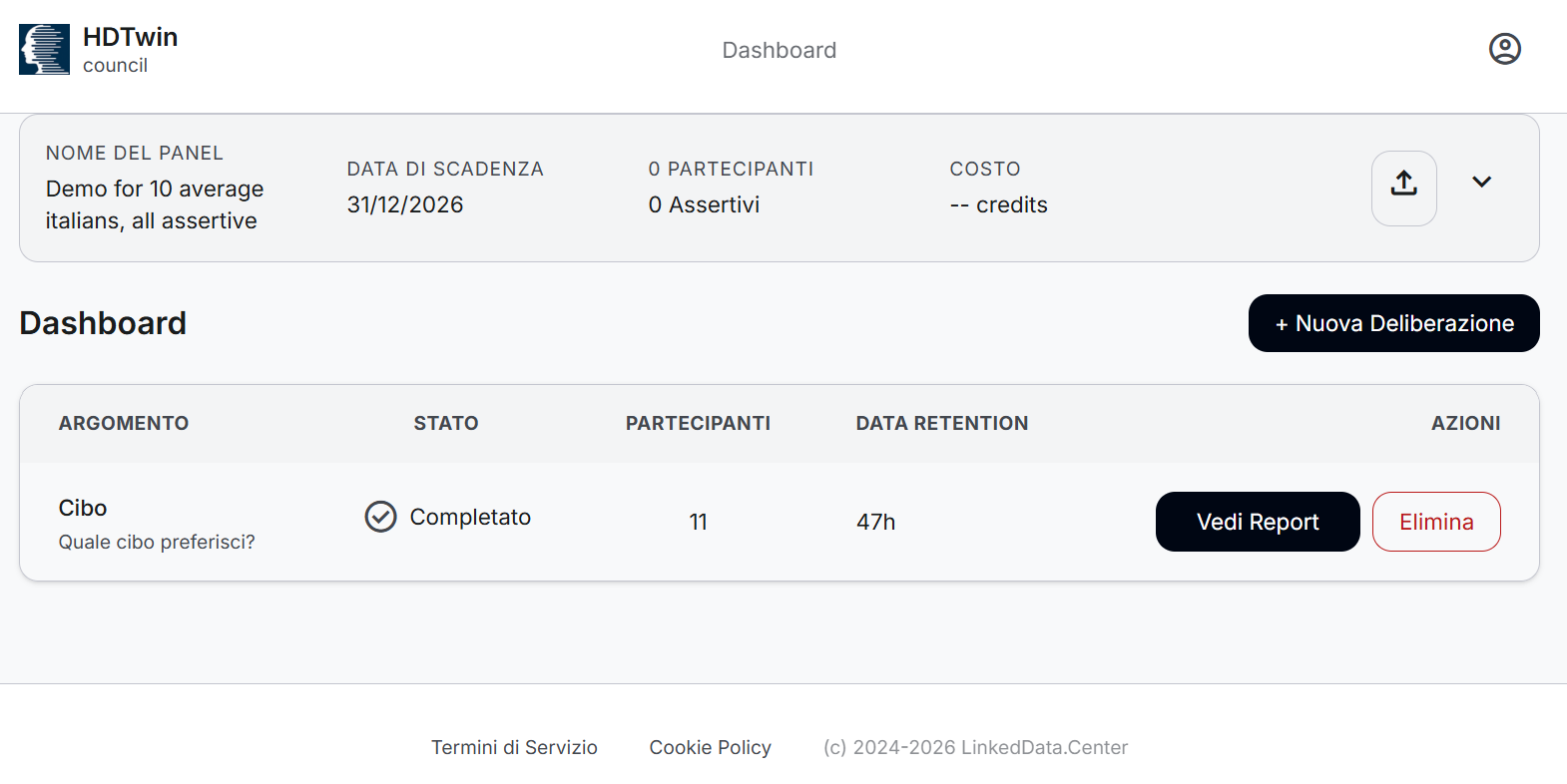
| Dashboard |
Return to the list of deliberations. |
The PDF is suitable for reviewing and sharing the structured results. The separate Export Data function is intended for working with the underlying report data; its exact schema should be examined in the exported file rather than inferred from the visual report.
Data retention
Online reports are retained for 48 hours before automatic deletion. Reports or exports that need to be preserved should therefore be saved while available.
15. Conclusion
The HDTwin Council Report transforms the voting behaviour of a panel of synthetic AI agents into a structured representation of collective opinions.
Its main value comes from combining quantitative voting distributions, similarity-based opinion groups, and visual representations of agreement and disagreement.
A reader can use the report to understand what the synthetic panel collectively supports or rejects, where different perspectives emerge, which statements distinguish them, and which areas may benefit from further investigation.
The report should be interpreted as an analytical tool for exploring possible opinion structures and generating insights or hypotheses, rather than as direct empirical evidence of the views of a real population.